

Overview
By connecting your Fitbit, you allow Hoptics to access key health metrics likeheart rate, activity levels, sleep patterns, and more, which our AI analyzes
to provide actionable insights. Follow the steps below to get started.
Prerequisites
Before you begin, ensure you have the following:- A Fitbit account with a compatible Fitbit device (e.g.,
Fitbit Sense,Charge 5,Charge 6, or other heart rate enabled devices) - Fitbit mobile app installed on your iOS or Android device.
- An Individual Hoptics account. If you dont have one, sign up at signup.
1
Log In to Your Hoptics Account
- Open your web browser or the Hoptics mobile app.
- Navigate to login and sign in using your Hoptics credentials.
2
Access Fitbit Integration Settings
- In your Hoptics dashboard, go to the Integrations section.
- Locate the Fitbit option and click Connect.
3
Authorize Hoptics to Access Fitbit Data
- Clicking the integration link will redirect you to the Fitbit authorization page.
- Log in to your Fitbit account using your Fitbit credentials.
-
Review the permissions Hoptics requests. These may include:
Activity and Exercise: To access step count and activity data.Heart Rate: To monitor heart rate trends for cardiovascular health analysis.Oxygen Saturation (SpO₂): To measure the percentage of oxygen saturated hemoglobin in the blood, reflecting how effectively oxygen is being delivered to the body’s tissues.Sleep: To analyze sleep patterns, which can impact metabolic and cardiovascular health.Electrocardiogram (ECG)(if available): To detect irregular heart rhythms, such as atrial fibrillation (AFib).Cardio Fitness Score (VO2 Max): To assess cardiovascular fitness.Profile: To link your Fitbit data to your Hoptics account.
- Click Allow to grant Hoptics access to the selected data. You can customize permissions, but enabling all requested permissions ensures optimal data driven insights.
4
Confirm Integration in Hoptics
- After authorizing, you’ll be redirected back to Hoptics.
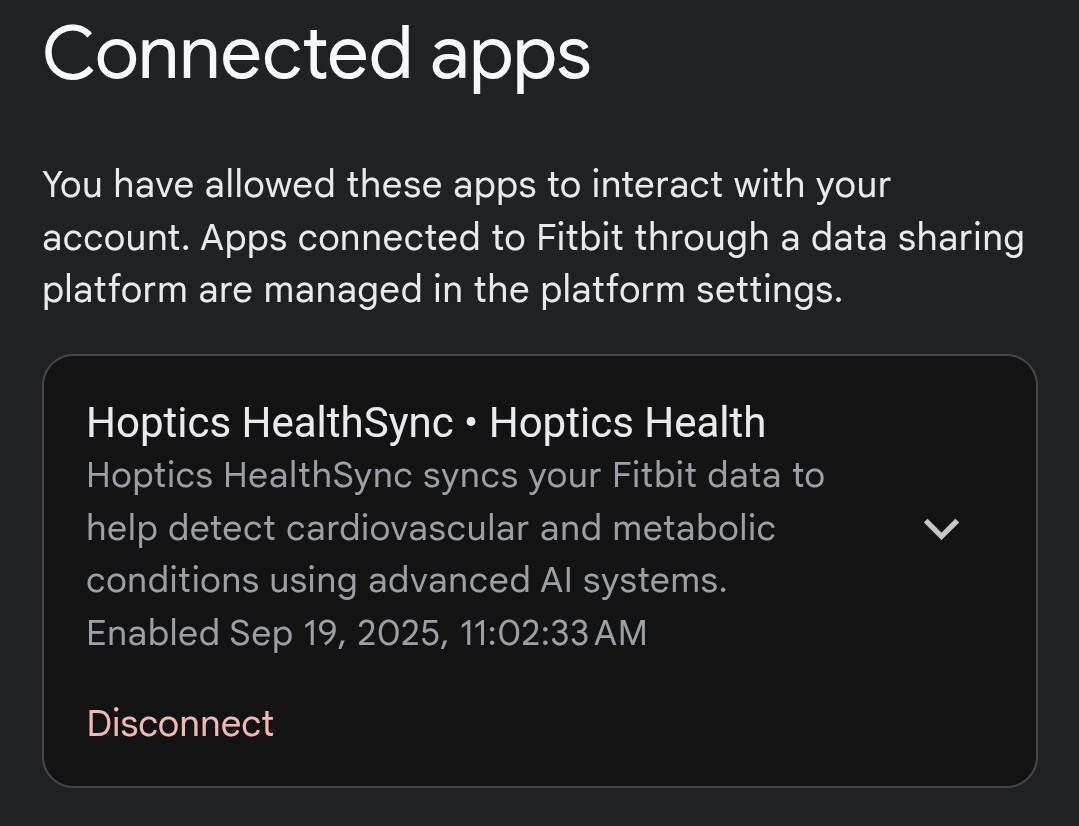
- In your Hoptics account If the Fitbit entry in Integrations shows a
Disconnectbutton, the connection is active.
We never store your Fitbit credentials. Authorization is handled securely through Fitbit’s
official system OAuth 2.0.
Troubleshooting
Error: Integration Fails
Error: Integration Fails
- Ensure youre logged into the correct Fitbit account and that the integration link hasn’t expired.
- If needed, disconnect your Hoptics integration and then connect it again.
Issue: Data Not Syncing
Issue: Data Not Syncing
Solution: Confirm your Fitbit device is synced with the Fitbit app. Check your internet connection and try connecting again.
Issue: Missing Insights
Issue: Missing Insights
Solution: Make sure all required permissions were granted during authorization. If they were not, open your Fitbit account’s
Connected Apps, disconnect Hoptics, and then restart the Fitbit connection from Hoptics.